OTP – Visa Agency

OTP

Flado eVisa OTP Integration

One-time setup for clients who need Flado Indonesia to access and process their Immigration profile securely.

Since April 27, 2026, Indonesian Immigration requires OTP verification codes for login to the eVisa / Immigration system.

OTP codes are valid for a very short time, usually around 5 minutes. Because we process many client applications, it is not practical or reliable to request the code manually every time we need to access your Immigration profile.

To solve this, you need to integrate your email with the Flado ecosystem one time. After this setup, Flado can receive only the Immigration OTP emails required for your visa, KITAS, extension, or sponsored application process.

Step 1 Add Flado as a forwarding address in your email settings.
Wait We confirm the forwarding request on our side, usually within 30–60 minutes during working hours.
Step 2 Create a filter for Immigration emails only, then submit the form below.
Important: Companies and Indonesian citizens cannot have a second Immigration profile. Foreign citizens must also provide their existing Immigration profile if they request Flado Indonesia to continue any further Immigration-related process or action on their behalf.
The screenshots below show the setup in Gmail as an example. The same logic can usually be configured in Yahoo, corporate email, or another mail service, but each provider has different settings. Please search your mailbox help center for email forwarding and filter rules if you do not use Gmail.

Step-by-Step Guide

Step 1: Add Flado as a Forwarding Address

Open Gmail in browser
  • Open Gmail in a browser, not in the Gmail mobile app.
  • If you are using a phone, open Gmail in your mobile browser and enable “Desktop site”.
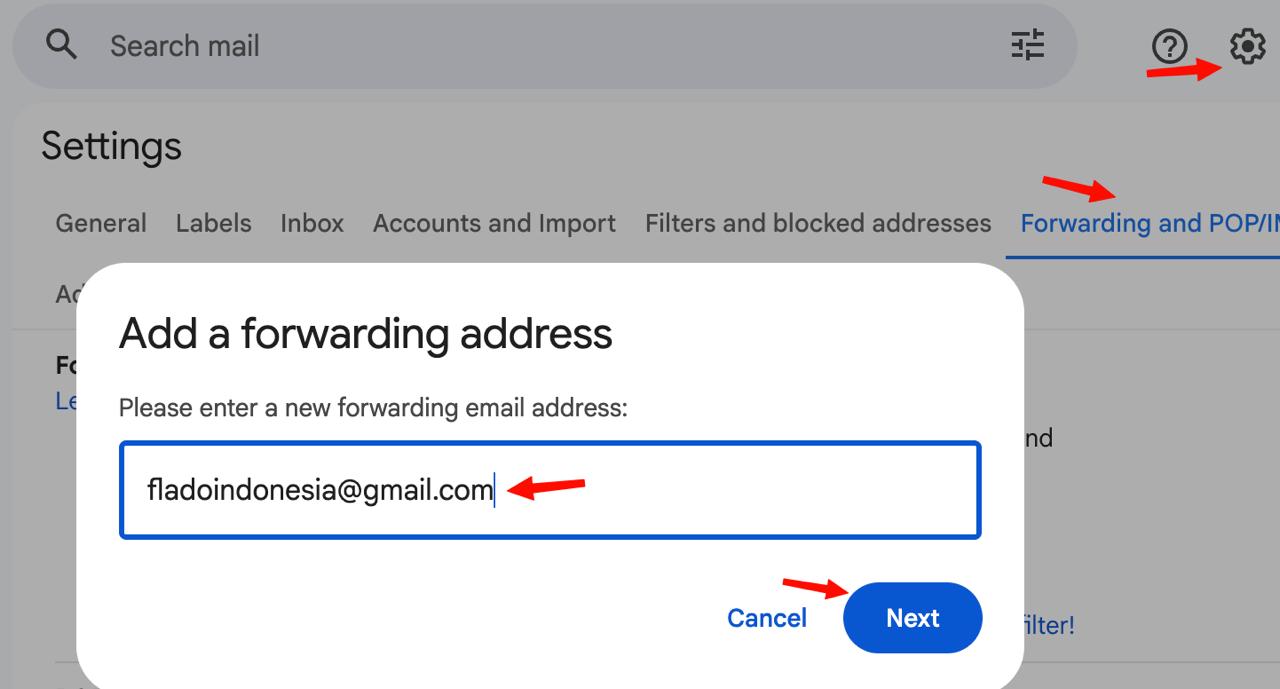
  • Go to Settings by pressing the Gear icon → See all settings → Forwarding and POP/IMAP.
  • Click “Add a forwarding address”.
  • Enter as the forwarding address.
  • Confirm the request from your side.
Gmail forwarding settings
After you complete Step 1, please wait. We will receive a confirmation request from Gmail and approve it manually. Usually this takes 30–60 minutes during working hours. Once confirmed, we will notify you by email to continue with Step 2.

Step 2: Create Filter for Immigration Emails Only

  • Go to Gmail settings again: https://mail.google.com → Gear icon → See all settings.
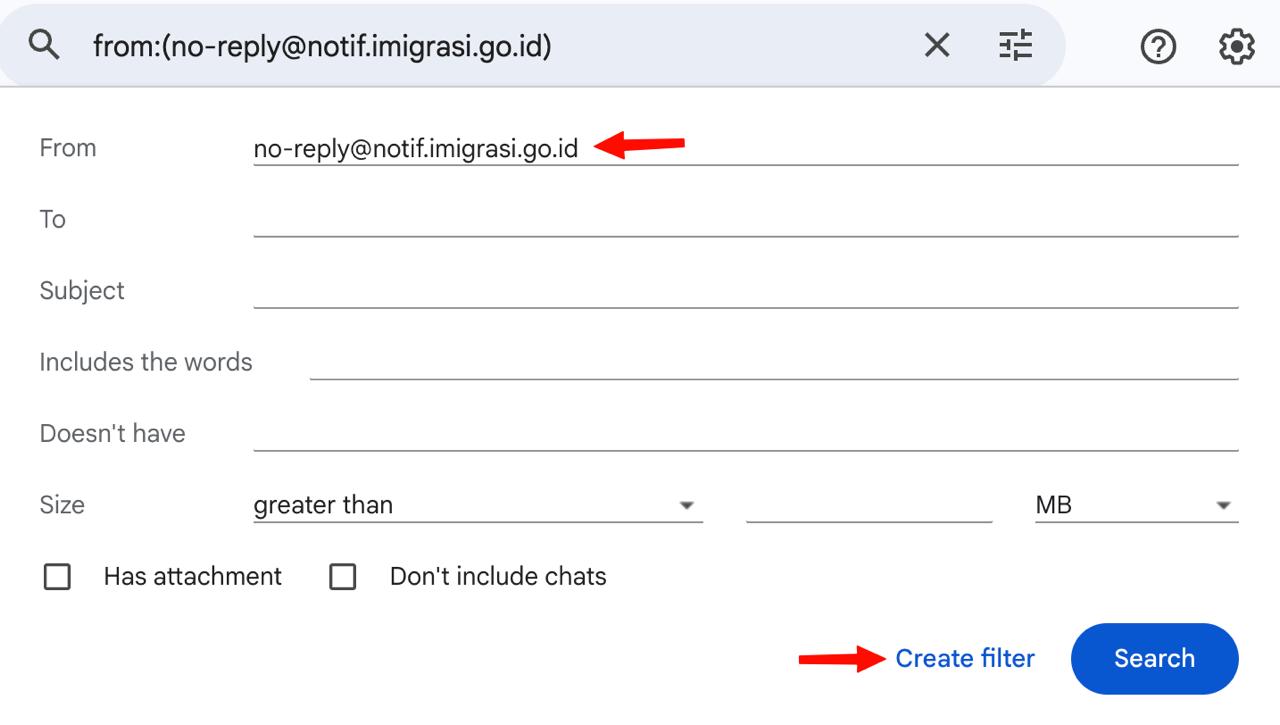
  • Go to Filters and Blocked Addresses.
  • Click “Create a new filter”.
  • In the “From” field, enter .
  • Click “Create filter”.
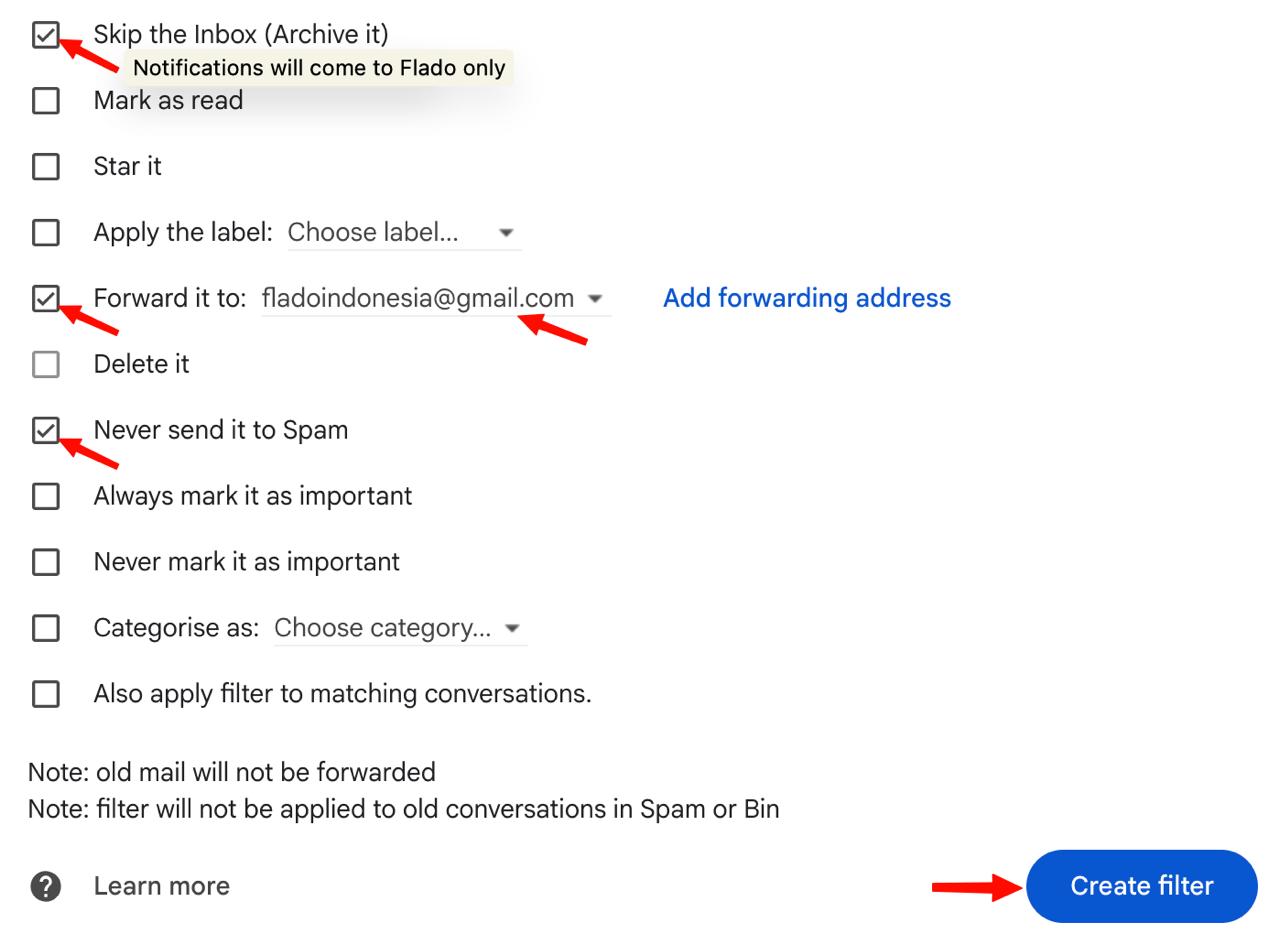
  • Tick “Forward it to” and select fladoindonesia@gmail.com.
  • Tick “Never send it to Spam”.
  • Optional: tick “Skip the Inbox” if you do not want to receive these emails in your inbox every time we work with your Immigration account.
  • Click “Create filter” to save.
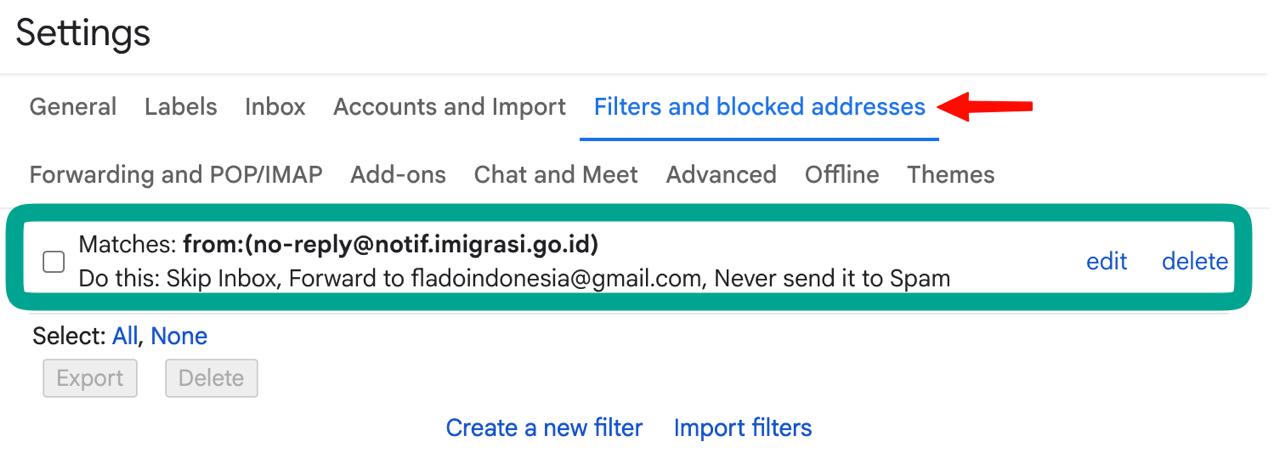
Gmail filter setup Forward Immigration emails to Flado and skip inbox
The forwarding address may not appear in the filter settings until Flado has confirmed Step 1. This is normal Gmail protection. Please do not continue Step 2 until you receive our confirmation.

Submit Integration Details

Please fill this form only after you have completed Step 2.
Immigration profile status *
Security note: Flado does not need access to your personal email mailbox. We only need your Immigration profile access if the profile already exists, and forwarding must be limited to Immigration emails only.

Integration request sent successfully!

Thank you. We have received your details in our internal system.

If Step 1 and Step 2 are completed correctly, Flado will be able to receive Immigration OTP codes and continue the required process for your application.

Please do not send the same request again. Our team will process requests in order.